


Webhooks
Webhooks is in Early Access
This feature is available to a limited number of customers in early access and may change without notice. Reach out to us if you're interested.
Webhooks send Alerts & Check-Up issues as signed HTTP requests to your own endpoints, so you can connect pganalyze to your own services or any tool that accepts webhooks.
Managing webhooks requires organization-wide modify permissions. Other members can view webhooks and deliveries for servers they have access to.
Overview
Webhooks are triggered for the following state changes, for issues of all severities:
| Event type | Sent when |
|---|---|
issue.triggered | An issue is created |
issue.escalated | An issue’s severity increases |
issue.downgraded | An issue’s severity decreases |
issue.acknowledged | An issue is acknowledged |
issue.reopened | An acknowledged issue is reopened |
issue.resolved | An issue is resolved |
ping | A webhook is tested |
If several alert rules route the same issue to one webhook, it receives a single request. Here is an example payload:
{
  "type": "issue.escalated",
  "id": "6f1c9a8e-2b3d-4e5f-9a1b-2c3d4e5f6a7b",
  "timestamp": "2026-10-14T17:02:11Z",
  "version": 1,
  "organization": { "id": "9a8e6f1c-9a1b-4e5f-2b3d-2c3f6a7bd4e5", "slug": "acme" },
  "data": {
    "endpoint": { "id": "42", "name": "Ops alert router" },
    "issue": {
      "id": "12345",
      "severity": "critical",
      "state": "triggered",
      "checkKind": "queries/slowness",
      "description": "Slow queries on prod-db",
      "queryText": "SELECT 1",
      "details": { "avg_time": 1.5 },
      "createdAt": "2026-10-14T16:40:00Z",
      "updatedAt": "2026-10-14T17:02:10Z",
      "url": "https://app.pganalyze.com/databases/678/checks/queries/slowness/12345",
      "references": [
        { "kind": "Query", "name": "…", "queryText": "SELECT …", "url": "https://…" }
      ]
    },
    "server": {
      "id": "abc123xyz",
      "name": "prod-db",
      "url": "https://app.pganalyze.com/servers/abc123xyz",
      "tags": { "env": "production" }
    },
    "database": { "id": "678", "name": "app_production" },
    "alertRules": [{ "id": "7", "name": "Prod alerts" }],
    "alertDestinations": [{ "id": "9", "name": "SRE Team" }]
  }
}
Retries: timeouts, connection and TLS errors, and HTTP 5xx, 408, 425, and 429 responses are retried up to 7 attempts over about 4 hours. Other responses fail immediately. Redirects are not followed.
Automatic disabling: if 20 deliveries in a row fail over more than 24 hours, pganalyze disables the webhook and e-mails organization members with manage permissions.
Setup
1. Add the webhook
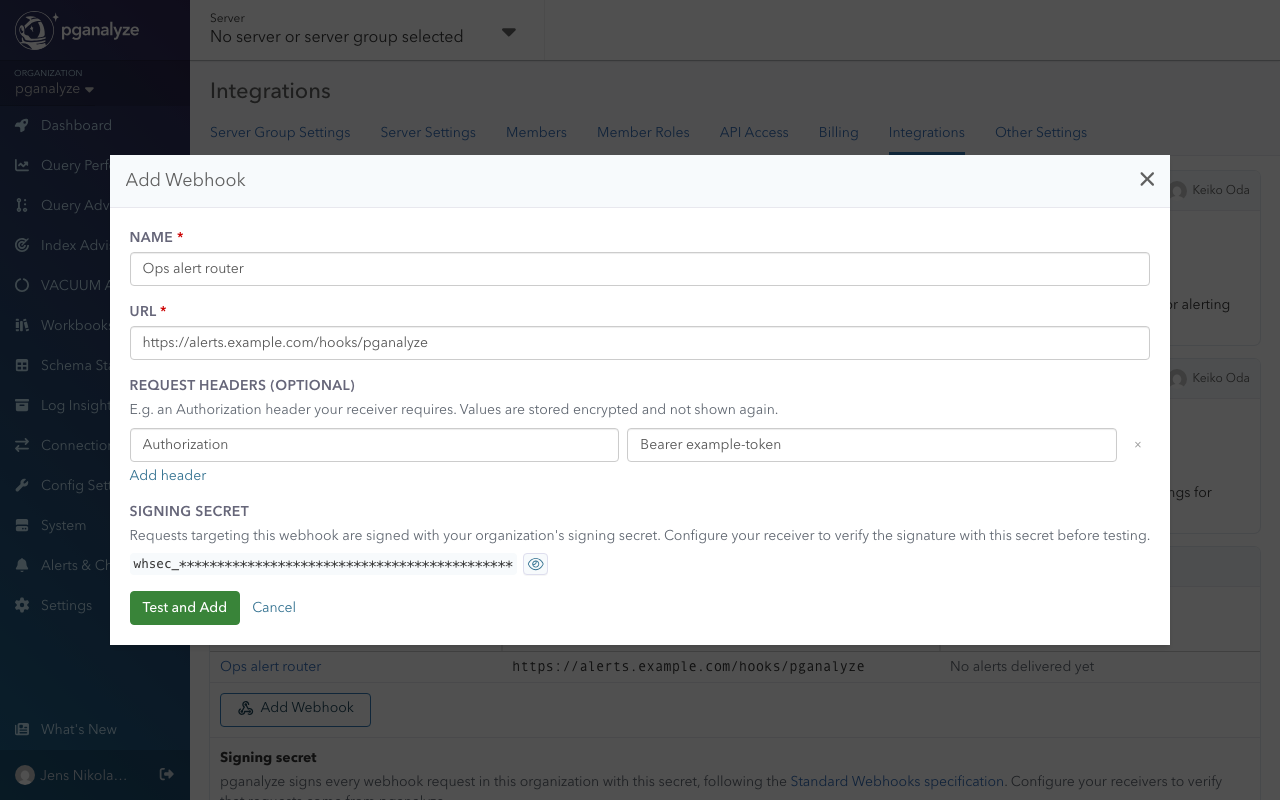
- Go to Settings > Integrations
- In the Webhooks panel, click Add Webhook
- Enter a name and the URL. The URL must use HTTPS and resolve to a public address.
- Optionally, add request headers, such as an
Authorizationheader your receiver requires - Copy the Signing secret and configure your receiver to verify requests (see step 2)
- Click Test and Add. pganalyze sends a
pingevent and only adds the webhook if it succeeds.
2. Verify requests
Requests follow the Standard Webhooks specification,
so you can verify them with any Standard Webhooks library. Each request is a POST with a
JSON body and these headers:
webhook-id: the event ID. It stays the same across retries, so you can use it to deduplicate.webhook-timestamp: the send time, in Unix secondswebhook-signature:v1,followed by a base64 HMAC-SHA256 of{webhook-id}.{webhook-timestamp}.{body}, signed with your signing secret
The signing secret is shared by all webhooks in the organization. Members with modify permissions can reveal and copy it in the Webhooks panel.
3. Route issues to the webhook
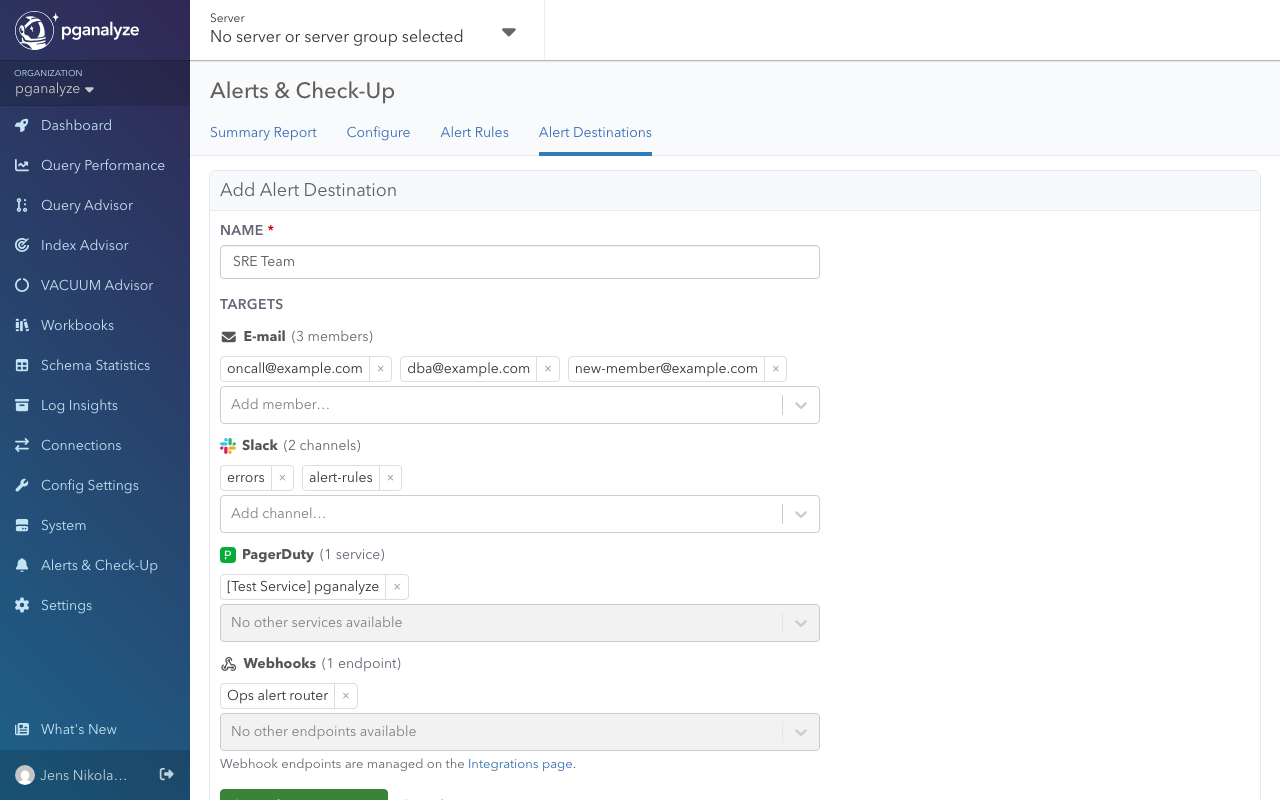
- Go to Alerts & Check-Up > Alert Destinations and add the webhook to a destination
- On the Alert Rules tab, route the checks you want to that destination
See Alerting for how destinations and rules work.
Managing webhooks
Click a webhook’s name in the Webhooks panel to open its details. From there you can Send test, Edit, Disable, or Remove it. Changing the URL or request headers requires a new successful test.
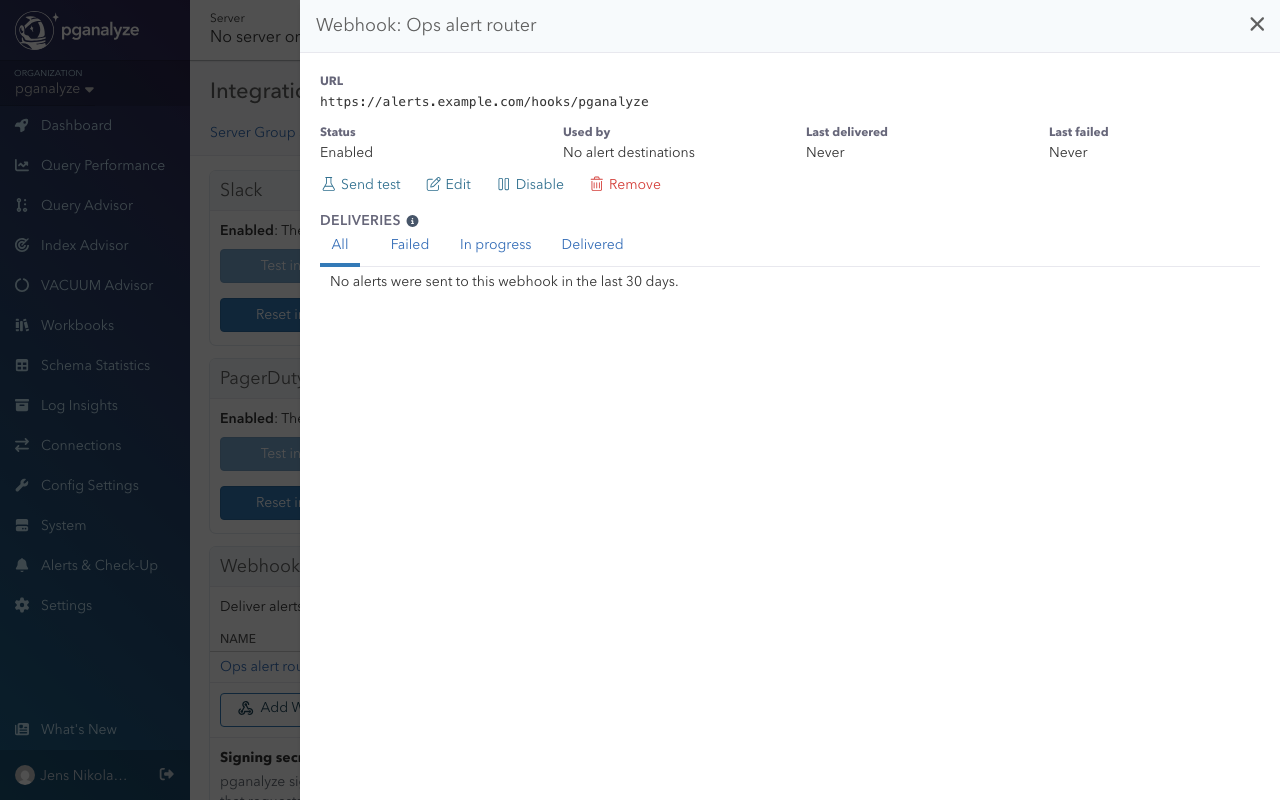
Deliveries: the webhook details list deliveries from the last 30 days, filterable by status. Click a delivery’s time to see its attempts, the response body excerpt, and the payload. Test requests are not listed.
Disabling: a disabled webhook receives no requests, and pending deliveries show as “Not sent (webhook disabled)”. To enable it again, click Test and enable.
Rotating the signing secret: click Rotate secret in the Webhooks panel. For 7 days, requests are signed with both the new and the old secret, so you can update your receivers.
Couldn't find what you were looking for or want to talk about something specific?
Start a conversation with us →