


incident.io Integration
incident.io integration is in Early Access
This feature is available to a limited number of customers in early access and may change without notice. Reach out to us if you're interested.
The incident.io integration sends Alerts & Check-Up issues to an HTTP alert source in incident.io, where your alert routes can page on-call, open incidents, or post to Slack.
Managing incident.io alert sources requires organization-wide modify permissions.
Overview
Each pganalyze issue becomes one incident.io alert, linked back to the issue. pganalyze sends an alert event when an issue is triggered, changes severity, or is resolved, for issues of all severities. Acknowledging or reopening an issue is not sent, since incident.io alerts have no acknowledged state.
Each event carries the issue details in metadata, which you can map to alert attributes in
incident.io and use in routes and filters. It has the same fields as the data object of the
webhook payload, without the description, query text, and
details, which are in the alert description instead. Useful fields include:
| Field | Example |
|---|---|
metadata.issue.severity | critical, warning, info |
metadata.issue.checkKind | queries/slowness |
metadata.server.name | prod-db |
metadata.server.tags | { "env": "production" } |
metadata.database.name | app_production |
Retries and automatic disabling work as for webhooks. If a newer event for the same issue exists, pganalyze skips retrying the older one, so incident.io never receives an outdated status.
Setup
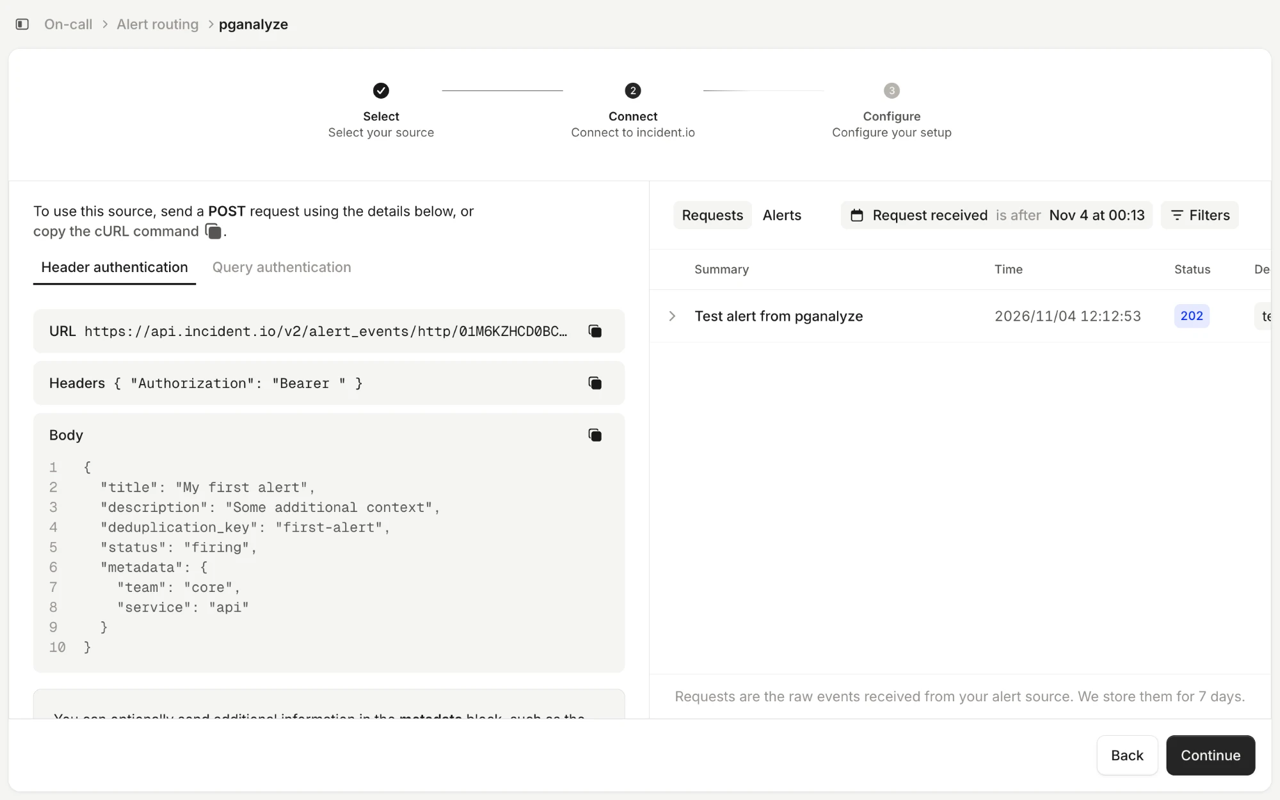
1. Create an HTTP alert source in incident.io
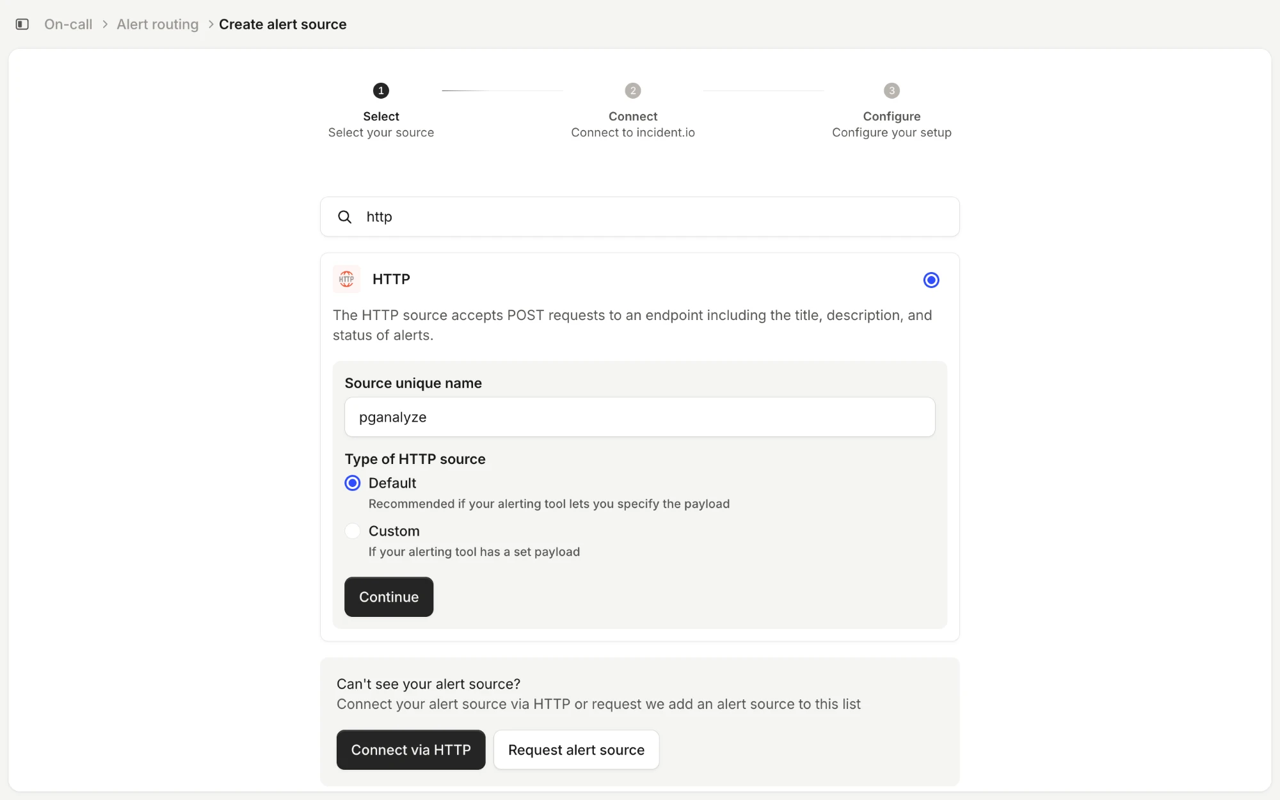
- Go to On-call > Alert routing, click Create, and choose to create an alert source
- Search for “http”, select HTTP, and enter a Source unique name, for example “pganalyze”
- Keep Default as the Type of HTTP source and click Continue. pganalyze already sends events in incident.io’s alert schema.
The Connect step shows the URL and Headers pganalyze needs. Keep it open for the next step.
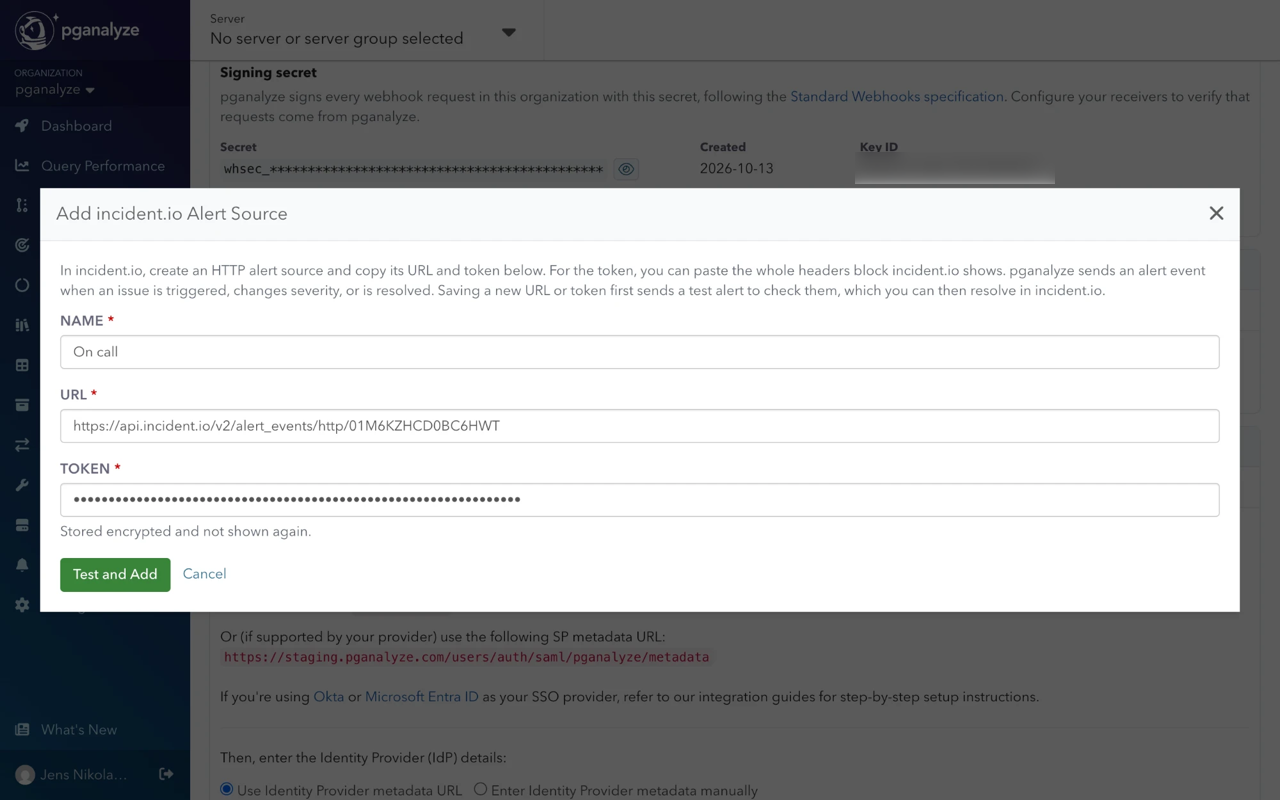
2. Add the alert source in pganalyze
- Go to Settings > Integrations
- In the incident.io panel, click Add Alert Source
- Enter a name, then paste the URL and the Token. You can paste the whole headers block from incident.io.
- Click Test and Add. pganalyze sends a test alert and only adds the alert source if incident.io accepts it.
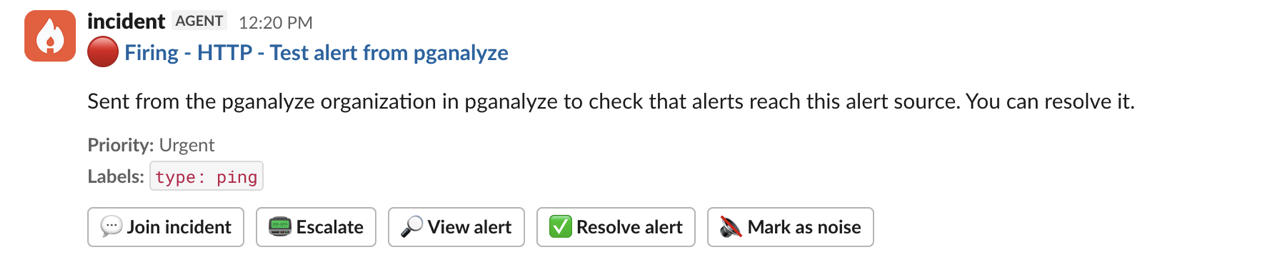
The test alert shows up under Requests in incident.io. Click Continue there to finish the setup. The test alert then follows your alert routes like any other alert. Resolve it in incident.io.
3. Route issues to incident.io
In pganalyze, add the alert source to an alert destination and route checks to it, the same way as for webhooks.
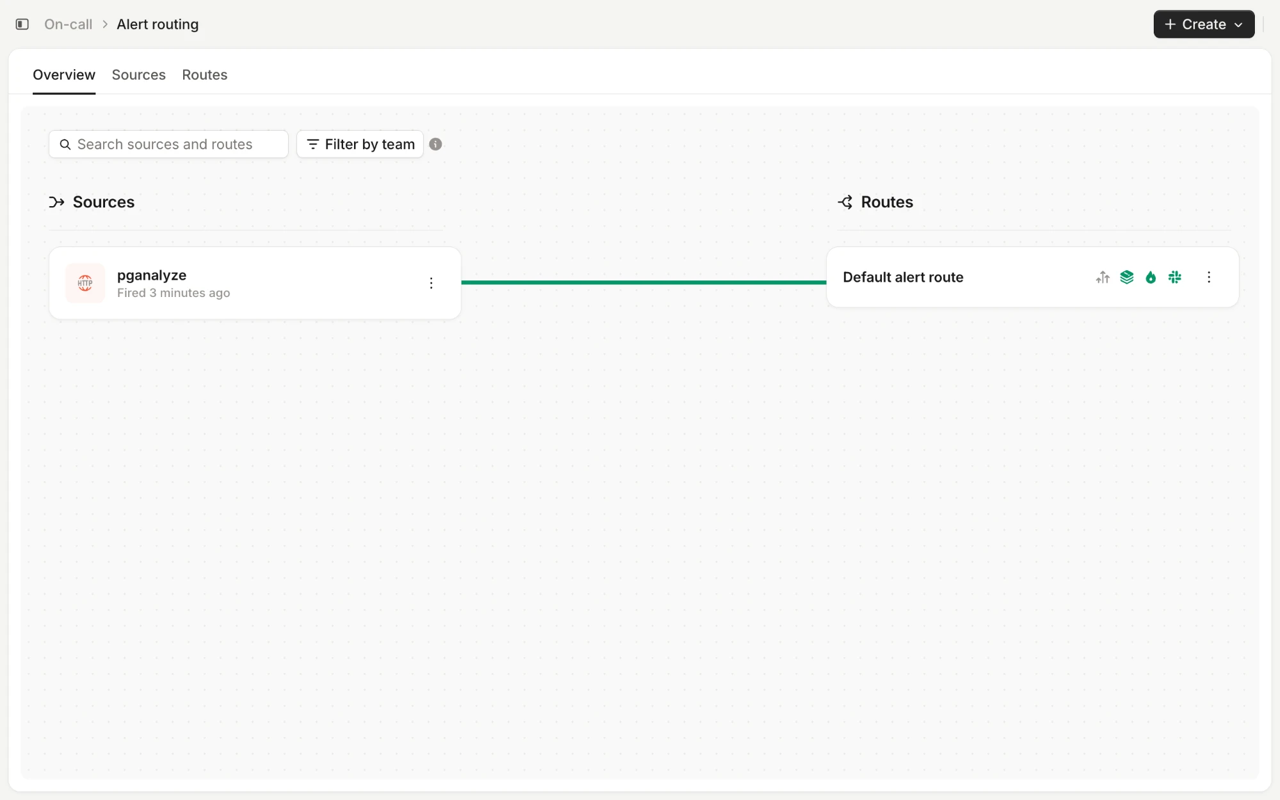
In incident.io, On-call > Alert routing shows which alert routes receive pganalyze alerts:
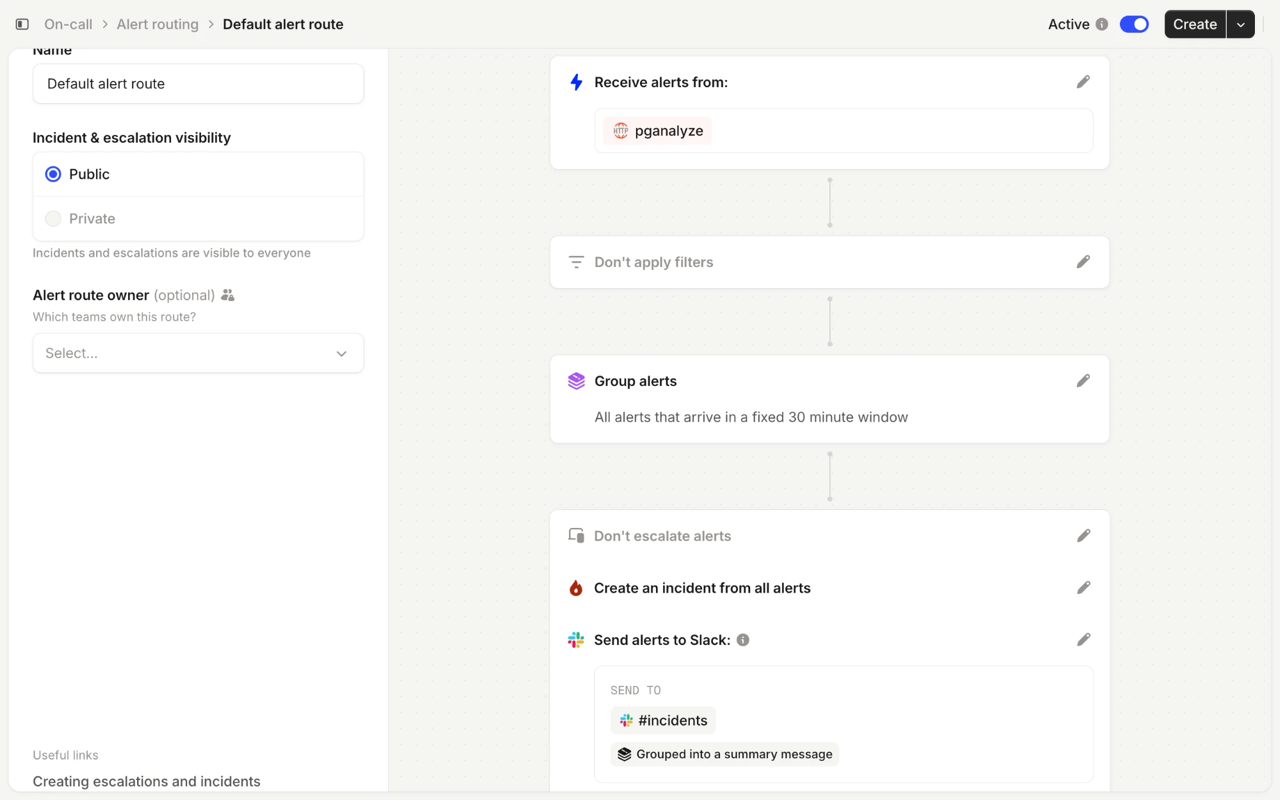
Edit a route to decide what pganalyze alerts do: filter, group, escalate, create incidents, or post to Slack.
To page only on critical issues, filter on metadata.issue.severity.
Managing alert sources
Click an alert source’s name in the incident.io panel to Send test alert, Edit, Disable, or Remove it, and to see its deliveries. This works the same way as managing webhooks.
Couldn't find what you were looking for or want to talk about something specific?
Start a conversation with us →